
What can HubSpot's Customer Agent see in your CRM?
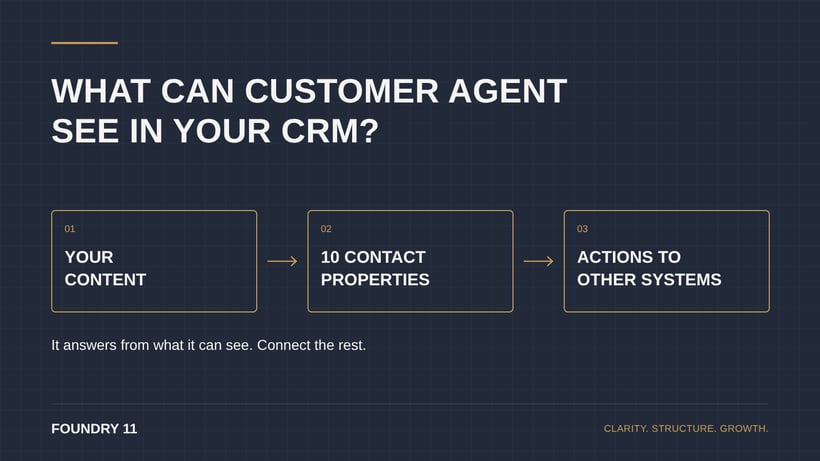
HubSpot’s Customer Agent answers from what it can see: your content, up to 10 contact properties, and any systems you connect through actions. Everything else is invisible to it. An order sitting in NetSuite or a payment recorded in Xero doesn’t exist as far as the agent is concerned, until you connect it.
This guide explains each of those three parts and how to get data from your other systems in front of the agent. If you’re new to the feature, start with our overview of what Customer Agent does. Everything below was checked against HubSpot’s documentation on 12/11/2026.
A practical example: “Where’s my order?”
A customer opens your website chat at 9:47pm on a Sunday. Their order was due on Friday. It shipped on Wednesday, and the tracking number is in NetSuite.
If the agent can only see your website and help articles, the honest answer it can give is that it can’t find the order. To a customer, that sounds like you’ve lost it. If the order status and tracking number are on their contact record, the agent can confirm who they are and tell them it’s out for delivery today.
This is an illustrative scenario, not a claimed Foundry 11 customer result. The point is that the gap is a data problem, not an AI problem.
1. Your content: what it answers from
The agent answers from the content you choose. According to HubSpot’s setup guide, that can be:
- Knowledge base articles, website pages, landing pages and blog posts in HubSpot
- Uploaded files, such as Word, PDF, PowerPoint and spreadsheet files. HubSpot notes that CSV and Excel files suit structured information like product catalogues and pricing.
- A public URL, with an option to crawl and sync every page on that domain
That last option deserves care. If an old pricing page is still live on your domain, the agent can find it and quote it. Review your content before you connect it, and give each source an owner.
2. Your CRM: up to 10 contact properties
The agent can read and update CRM data, but HubSpot’s CRM access guide sets two clear limits: it can only access contact properties, and no more than 10 of them. Company, deal and other records aren’t included.
For each property, you decide whether the agent can view it, edit it or both. You also set how it checks who it’s talking to before it shares anything:
- Match email: the agent asks for an email address or phone number and checks it matches the contact record.
- Verify email: the agent sends a link to the customer’s email address and only continues once they click it.
Ten properties isn’t many. Choose the fields that answer the questions customers actually ask, not the fields you happen to have.
3. Other systems: actions
Actions let the agent call another system’s API during a conversation, to fetch information or complete a task. HubSpot’s own examples are checking an order status and sending a password reset email. Per HubSpot’s actions guide:
- You can set up to 20 actions.
- A custom API request can use GET or POST, with no authentication, a request signature in the header, or an API key.
- Response instructions control what the agent includes in its reply, and what it leaves out.
- Each action has a protection level: none, Match email or Verify email.
- Anything involving account access or credentials should only send secure links or instructions, not change account details in the chat.
Getting NetSuite and Xero data in front of the agent
Out of the box, the agent can’t read your orders or invoices. Even when orders sync into HubSpot as their own records, they aren’t contact properties, so the agent doesn’t see them. There are two ways to close the gap.
| Route | How it works | What to watch |
|---|---|---|
| Put the answer on the contact | Your integration writes the few fields customers ask about onto the contact record, such as latest order status, tracking number, last invoice status and date paid. | Fits within the 10-property limit and suits questions about the latest order or invoice. It won’t answer questions about older ones. |
| Call the system directly | An action asks NetSuite, Xero or your warehouse system for the answer in real time. | Only works if that system’s API can be reached with one of the three authentication options HubSpot supports. Some systems need a small layer in between. |
Which route suits you depends on the questions your customers really ask. Work that out before anyone builds anything.
Where to start
- List the 20 questions customers ask most. Your inbox and chat history will tell you.
- For each one, note where the right answer lives today: a web page, NetSuite, Xero, a spreadsheet or someone’s head.
- Fix the content first. Archive old pages and write down the answers that only exist in someone’s head.
- Choose up to 10 contact properties for the answers that live in other systems, and connect them.
- Add actions only for the questions those properties can’t answer.
- Test the agent in preview against real questions before it goes near a customer.
Running costs and plan eligibility are covered in our HubSpot AI costs checklist and our Customer Agent overview.
Want to know what your agent could see today? Talk it through with Foundry 11. We’ll check your content, CRM and integrations against the questions your customers actually ask.
Common questions
Can Customer Agent read deals or company records?
Not currently. HubSpot’s documentation says it can only access or update contact properties, up to 10 of them.
Can it look up an order in NetSuite directly?
Possibly, through an action, if NetSuite’s API can be reached using one of the authentication options HubSpot supports. Syncing the latest order status to the contact record is often simpler.
Does it check who it’s talking to?
It can. Each property and action can require the customer’s email to match the contact record, or require them to click a verification link, before the agent shares anything.
Sources checked 12/11/2026: HubSpot Knowledge Base articles on setting up the customer agent, CRM data access and actions.